
Download Helix Visual Client – Free Mac File Manager, Secure Version Control Tool
Overview – What is Helix Visual Client (P4V) for Mac?
Helix Visual Client, commonly known by its abbreviation P4V, is the graphical front‑end for Perforce’s powerful version‑control engine. Developed by Perforce Software, Inc., the Mac‑specific build is offered completely free of charge, positioning it as an attractive option for developers, designers, and any team that needs reliable file management and change tracking. First released on Softonic on May 20 2022, the current stable release (2022.1/2286077) runs on macOS X and later, supporting the latest Intel‑ and Apple‑silicon hardware.
Although the application is provided only in English, its intuitive UI and extensive documentation make it accessible to both seasoned Perforce administrators and newcomers alike. P4V’s core purpose is to simplify interactions with the Perforce server: you can browse depot trees, submit changelists, resolve conflicts, and view file histories without typing a single command. Because it integrates tightly with the underlying Perforce server, the client inherits the same security guarantees, such as encrypted communications and granular access controls.
This review will walk you through the most important features, explain how to install and configure the client on a Mac, discuss compatibility considerations, and present a balanced look at its strengths and drawbacks. By the end, you’ll know whether Helix Visual Client is the right free file‑manager‑and‑version‑control solution for your macOS workflow.
Key Features of Helix Visual Client (P4V)
- Graphical depot navigation – explore branches, streams, and folders with drag‑and‑drop.
- Changelist creation and submission – batch edits, review, and commit in a single UI.
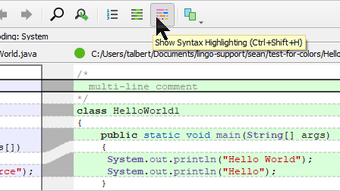
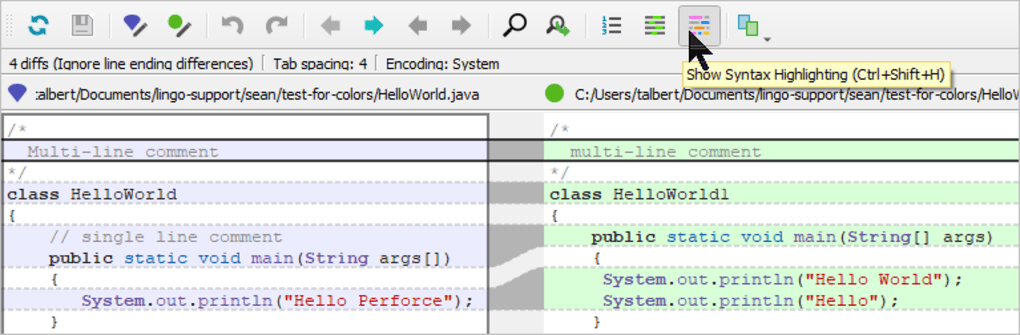
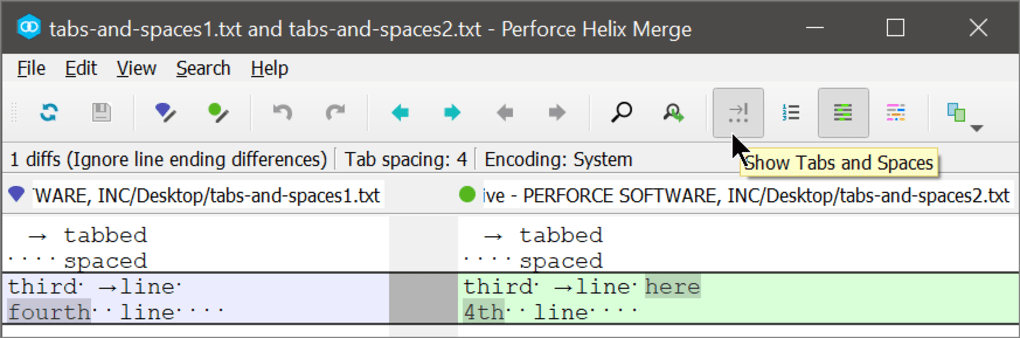
- Visual merge and conflict resolution – three‑way diff view with inline editing.
- File history and annotation – view revisions, authors, and timestamps at a glance.
- Integrated workspace management – define, switch, and map client workspaces.
- Secure authentication – supports SSL/TLS and ticket‑based login.
- Customizable UI – detachable panels, theme support, and keyboard shortcuts.
- Extensive scripting – automate tasks via Python or Tcl hooks.
- Cross‑platform consistency – identical feature set on Windows, Linux, and Mac.
- Free updates – regular patches and feature releases from Perforce.
Each of these capabilities is designed to reduce the friction that often accompanies command‑line version control. For instance, the visual merge tool eliminates the need for external diff utilities, while the changelist workflow mirrors the familiar “stage‑commit‑push” pattern popularized by Git, albeit within Perforce’s centralized model. The UI’s modular panels let you keep the depot tree, pending changelists, and file details visible simultaneously, which speeds up code reviews and debugging.
Moreover, P4V’s secure authentication mechanisms ensure that every file transfer is encrypted, protecting intellectual property on corporate networks. The integration of scripting hooks also means that teams can embed custom validation steps—like automated linting—directly into the submit process, reinforcing code quality without leaving the application. Overall, these features combine to make Helix Visual Client a comprehensive, free solution for Mac users who need reliable file management paired with enterprise‑grade version control.
Installation, First‑Run Setup, and Compatibility
Getting Helix Visual Client up and running on a Mac is straightforward, even for users who are new to Perforce. Follow these steps to download, install, and configure the client:
- Download the installer. Visit the official Perforce website or the Softonic listing and click the “Download for macOS” button. The file is a
.dmgpackage sized under 150 MB. - Mount the DMG. Double‑click the downloaded file; macOS will mount it as a virtual drive.
- Copy to Applications. Drag the Helix Visual Client icon into the
/Applicationsfolder. You may be prompted to enter your administrator password. - Open the app. Launch P4V from the Applications folder. The first time you run it, macOS may warn you about an app from an unidentified developer; click “Open Anyway” in System Preferences → Security & Privacy.
- Configure a connection. In the “Connect to Server” dialog, enter your Perforce server address (e.g.,
perforce:1666) and your user credentials. If your server requires SSL, enable the “Secure (SSL)” checkbox. - Set up a workspace. Choose “New Workspace” and map depot paths to local directories. This mapping tells P4V where to sync files on your Mac.
- Sync files. After workspace creation, click “Get Latest Revision” to pull the current codebase to your local folder.
Helix Visual Client requires macOS X 10.12 (Sierra) or later, and it runs natively on both Intel‑based Macs and Apple Silicon (M1/M2) thanks to Apple’s Rosetta 2 translation layer when needed. The application supports 64‑bit architecture and integrates with macOS features such as the Touch Bar and Dark Mode. Because it is a Java‑based UI, you’ll benefit from automatic updates that keep the client compatible with newer macOS releases, reducing the need for manual patches. If you encounter any issues during installation, Perforce’s knowledge base provides step‑by‑step troubleshooting guides, and the community forums are active with solutions for common macOS quirks.
Pros, Cons, Frequently Asked Questions, and Final Verdict
Pros
- Free for macOS users – no licensing fees for basic version‑control tasks.
- Rich graphical interface simplifies depot navigation and changelist management.
- Secure communication with SSL/TLS and ticket‑based authentication.
- Consistent feature set across Windows, Linux, and Mac platforms.
- Regular updates and strong support from Perforce.
- Extensible via scripting for custom workflows.
Cons
- Limited to Perforce servers – not a universal VCS client.
- English‑only UI may be a barrier for non‑English speakers.
- Initial workspace configuration can be complex for beginners.
- Resource usage is higher than pure command‑line tools.
- Advanced features (e.g., Helix Core Enterprise) require paid Perforce licenses.
Frequently Asked Questions
Is Helix Visual Client really free for macOS?
Yes, the P4V client is offered at no cost for macOS users. You can download, install, and use it without purchasing a license, although server‑side features may require a paid Perforce subscription.
Can I use P4V with an existing Perforce server?
Absolutely. P4V is designed to connect to any Perforce Helix Core server, whether it’s hosted on‑premises or in the cloud. Just provide the server address and your credentials during the first‑run setup.
Does Helix Visual Client support Apple Silicon Macs?
Yes. P4V runs natively on Intel Macs and works on Apple Silicon (M1/M2) via Rosetta 2, with Perforce providing regular updates to ensure optimal performance on the latest hardware.
How do I resolve merge conflicts using P4V?
When a conflict occurs, P4V opens its built‑in three‑way merge tool. You can view the base, yours, and theirs versions side by side, make inline edits, and then save the resolved file before submitting the changelist.
Is there a way to automate tasks in P4V?
Yes. P4V supports scripting via Python or Tcl hooks. You can attach scripts to events such as “pre‑submit” or “post‑sync” to enforce policies, run tests, or update external systems.
Conclusion & Call‑to‑Action
Helix Visual Client delivers a polished, secure, and fully featured version‑control experience for Mac users without demanding a license fee. Its visual approach lowers the learning curve for teams transitioning from command‑line tools, while the underlying Perforce engine provides enterprise‑grade reliability. If you already run a Perforce server or are looking for a free, macOS‑native alternative to Git GUI clients, P4V is worth a download.
Install it today, configure your first workspace, and experience the convenience of graphical change management. For the latest updates and community tips, visit Perforce’s official documentation portal and join the user forums. Happy coding!







